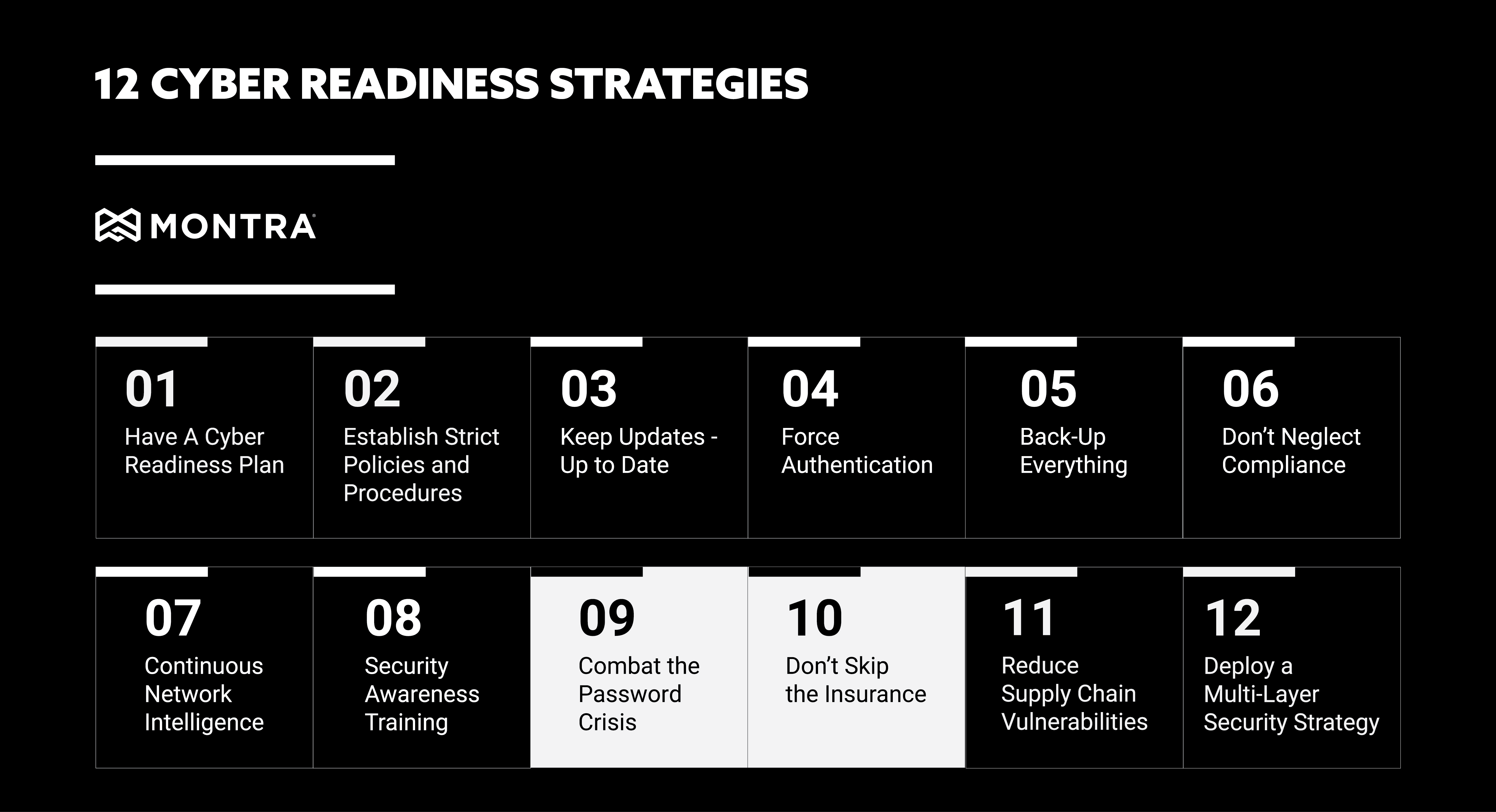
Cyber-readiness Strategies 9 and 10: Passwords and Insurance

It’s becoming increasingly difficult to keep up with the cyber security threats out there. From ransomware and phishing to malicious insiders and business email compromises, there are many dangers lurking in the digital world that can affect your organization. To stay safe, it’s important to have a robust cyber readiness strategy in place. This starts with making sure your employees are aware of the threats and know how to protect themselves, but it also includes implementing technology solutions and procedures that can help you mitigate or prevent attacks. In our prior installment of this series, we touched on Continuous Network Intelligence and Security Awareness Training. Keep reading for strategies #9 and #10; Combating the Password Crisis and Don’t Skip Insurance.

Combat the Password Crisis 

In today’s fully connected world, passwords are the first line of defense against cyber-attacks. However, they are also often the softest target for attacks. This is because many people use weak or easily guessed passwords, and they often reuse them across multiple accounts. This makes it easy for hackers to gain access to your systems if they can just crack one password. To combat this, it’s important to have strong password policies in place. This includes using a mix of letters, numbers, and special characters, as well as changing passwords regularly. This can be managed by policy on many systems so that users are forced to use strong passwords and unique passwords across systems. For some systems, these controls cannot be set, but alerts can be triggered so that IT staff will get notified when users set their passwords poorly. 

When users are forced to use difficult and unique passwords, it’s also critical to use a password manager to help users keep track of all their different login credentials. This will make it easier for your users to comply with the password policies. Some desktop browsers have a basic password manager built-in and third-party software can also be used that provides additional features like secure password sharing within groups. 

Don’t Skip the Insurance 

No matter how well you prepare, there’s always a chance that your organization could be the victim of a cyber-attack. This is why it’s so important to have insurance in place. Cyber insurance can help cover the costs of an attack, including business interruption, data recovery, and legal fees. It can also help with reputational damage control if your organization’s name is dragged through the mud. 

Cyber-insurance is a relatively new area of business insurance, so there are a wide variety of cyber insurance carriers with different underwriting policies. It is important to do your research and find one that fits your organization’s needs and that is cost-effective. It is also helpful to work with cyber experts, who can help you make some small changes to your IT operation that can have a big impact on your cyber insurance costs. Implementing multi-factor authentication across all your applications and using DNS Security can have a positive impact on your risk scoring with an insurance carrier. 

These are just two more of the many things you can do to improve your cyber readiness strategy. Stay tuned for our next, and final installment, where we’ll be covering strategies #11 and #12; Reduce Supply Chain Vulnerabilities and Deploying a Multi-Layer Security Strategy. If you would like more information or have questions about how strong your cyber-readiness is, please contact Montra at sales@montra.io.

Three Tips to Improve HR and IT Process Integration

When it comes to discussing employee onboarding and offboarding there are two main players who are involved in the process, HR and IT. Often HR and IT professionals find themselves at odds with each other because their daily workflows are so different and there is often little understanding of that between the departments. However, technology has come a long way and there are now systems in place that can assist with the integration of employee onboarding, offboarding and other workforce processes. Here are Montra’s top tips to ensure a successfully integrated HR and IT onboarding/offboarding process: 

1.  Set Regular Communication Schedules 

Schedule regular check-ins between the two department heads to ensure both teams are on the same page. A commonly heard complaint from IT professionals is that they are not included in the on/offboarding process until the very end and that teams are not working together to create a seamless transition for employees. As with any relationship, communication is key to success. When it comes to HR and IT integration, clear and concise communication will go a long way. Making sure both teams are aware of deadlines and expectations will help to avoid any stressful surprises down the road. 

2. Automate Reminders 

Automating tasks and reminders in the onboarding/offboarding processes is a great way to improve efficiency and accuracy across the board. Whether it is with email or more sophisticated systems, automated reminder notifications can minimize communication delay and ensure that longer lead time processes like background checks and laptop procurement are able to get started as quickly as possible in the process. 

3. Use Technology to Integrate 

There are several HR and IT software integration solutions on the market. They are often too complex to implement for most companies – requiring external consultants to implement. Montra’s VIA EX software is designed with the mid-market in mind. EX is workforce management software that helps businesses manage the IT aspects of onboarding and offboarding. Implementation is straightforward in most modern HRIS. VIA EX does everything from user account creation across multiple applications to managing the laptop and phone ordering processes and even enables employee mass notifications. 

By using these tips, your HR and IT departments can work together seamlessly to ensure a smooth onboarding and offboarding experience for your employees. By integrating the software into your company’s current HR and IT systems, you can improve communication between these two vital groups and make your business run smoother. 

If you are interested in learning more about the VIA EX software or would like to try it for yourself, please email us at sales@montra.io. We would be happy to answer any of your questions and discuss how the software could benefit your business. 

Policies Management in Microsoft 365

One of the great benefits of Microsoft 365 is the robust policy-setting capabilities within the platform. You can have the best security features, the most user-friendly Wi-Fi setup, and the most robust data loss prevention plan in place, but if your policy setting capabilities are not comprehensive and far-reaching, you will have difficulty keeping your operation secure and compliant. Let’s look at some of the different types of policies you might come across in Microsoft 365, as well as some best practices for setting them up and using them effectively.  

  1. Security & Compliance Policies

The Security & Compliance Center is the go-to place for all things security and compliance in Microsoft 365. From here, you can access various tools and resources to help you keep your environment secure, including the ability to create and manage policies.  

There are two types of policies that can be created in the Security & Compliance Center:  

  • Organization-wide policies: These are policies that apply to your entire organization and can be configured by anyone with the appropriate permissions.  
  • User-specific policies: These are policies that only apply to specific users or groups of users, and can be configured by anyone with the appropriate permissions. 

The settings for these policies are found under three major sections with the Security & Compliance Center: 

Microsoft Exchange Online Protection is a cloud-based security module that protects business email inboxes from spam and malware. With EO, security teams can set and enforce communication and messaging rules with ease. 

  • Threat protection policies 
  • Real-time reports 
  • Automated threat investigation and response 
  • Attack simulation features 

Office 365 Threat Intelligence uses data signals from a variety of intelligence sources such as global data centers, office clients, and compromises to give security teams the most recent information on threats to offices around the world. 

  • Threat explorer module 
  • Automated policy recommendations 
  • Threat feeds 
  • Rich analytics dashboard 

Microsoft’s Compliance Manager gives security teams the capability to assess compliance risks, as well as monitor and record compliance activity within Microsoft Cloud services, allowing them to ensure that all regulatory compliance standards are met. 

  • Audit and assessment reports 
  • Role-based access control 
  • Compliance scoring 
  • Secure evidence and activity repository 
  1. WiFi Policies 

If you’re using WiFi in your organization, then you’ll need to create a WiFi policy to make sure that only authorized users can access your network. WiFi policies can be created in the Microsoft 365 admin center, and they can be applied to entire organizations or specific users and groups.  

When creating a WiFi policy, you’ll need to specify the following:  

  • The name of the policy  
  • The description of the policy  
  • The WiFi SSID  
  • The WiFi password  
  • The type of encryption  
  • The type of authentication  
  • Whether or not users will be able to connect to the network automatically  

After you’ve created your WiFi policy, you can apply it to users and groups by going to the “Users and Groups” section in the Microsoft 365 admin center and selecting the appropriate users and groups from the list. Applying a WiFi policy to a user or group will give them the ability to connect to the network automatically, as well as manage their own connection settings.  

  1. Data Loss Prevention Policies

Organizations can use data loss prevention tools in the Office 365 Security & Compliance Center to detect, monitor, and secure highly sensitive data stored on Microsoft Office 365 services, including Exchange Online, SharePoint Online, OneDrive for Business, and Microsoft Teams.  

  • Automated rule enforcement 
  • Automatically block sensitive content 
  • Detailed incident reports 
  • Policy templates 
  1. Web Policies – Whitelists & Blacklists 

A website blacklist is a list of websites that are blocked from being accessed. A website whitelist is a list of websites that are allowed to be accessed. Both lists can be created in the Microsoft 365 admin center, and they can be applied to entire organizations or specific users and groups.  

When creating a blacklist or whitelist, you ‘ll need to specify the following:  

  • The name of the list  
  • The description of the list  
  • The URLs that you want to block or allow  

After you’ve created your blacklist or whitelist, you can apply it to users and groups by going to the “Users and Groups” section in the Microsoft 365 admin center and selecting the appropriate users and groups from the list. Applying a blacklist or whitelist to a user or group will give them the ability to access the websites on the list automatically, as well as manage their own website access settings.  

  1. Best Practices 

While it is beneficial to learn about various Microsoft 365 policies, it is equally important to learn how to practice them effectively. Some best practices for policy management in Microsoft 365 include:  

  • Assign a dedicated administrator to manage policies  
  • Use role-based access control to limit who can create and edit policies  
  • Create informative and descriptive names and descriptions for policies  
  • Test new policies before implementing them organization-wide  
  • Review existing policies on a regular basis  

Policies are an important part of Microsoft 365, and they can help you to keep your data safe and secure. By following the best practices listed above, you can ensure that your policies are effective and easy to manage. Thanks for reading!  

Do you have any questions about policy management in Microsoft 365? Email us at sales@montra.io  


Checklist for IT Employee Offboarding

Whether an employee leaves a company of their own accord or not, they first must be offboarded to ensure an easy and secure transition from their current role to their next one. IT administrators play a critical role in the offboarding process and must quickly and efficiently off-board the employee to keep business running smoothly. Follow our nine-step checklist to make sure you’re protecting your company’s network and data.

7 Step Checklist for Secure and Reliable Laptop Imaging

Your company’s laptops are a valuable business tool that enables the success of your workforce. It contains important information and files that are necessary for your work. That’s why it’s important to have a setup and a backup plan for your laptop imaging. In this blog post, we will discuss the best practices for laptop imaging so that you can keep your company data private and secure. When onboarding an employee, it is essential to set up their device and make sure to securely delete everything if a previous employee had that device. Laptop imaging can vary from business to business, so it is important to include specific instructions when onboarding a new user. 

1. Start with a Fresh Image

It can be tempting for companies to try to skip the imaging process when deploying new or re-used laptops. By starting with a newly imaged device, companies can document updates and changes more effectively, and avoid accidentally duplicating bad software or private data. In addition, starting fresh provides an opportunity to review and improve upon existing processes. It may take some extra time up front, but the long-term benefits of starting from scratch are typically worth the investment.

2. Identify User Profiles

When it comes to information management, one size does not fit all. That’s why it’s important for companies to tailor their systems to the specific needs of each team or department. Accounting departments, for example, have very different needs than design centers. As such, it is often useful to create different master PC images for each department. This helps to optimize workflow and ensure that employees have the programs, permissions, and privileges they need to do their jobs effectively. While it takes a bit of effort to set up separate images for each department, the benefits can be well worth the investment.

3. Verify Device Compatibility

Not every PC Image will work for every workstation. Therefore, it’s crucial to consider things like computer type, hard drive capacity, RAM, graphics processing power, operating system, and compatible software before beginning. This is because something as simple as a system update can render some programs obsolete. By taking all of these factors into account, you can ensure that your Master Image will be compatible with all of the systems it needs to be used on. In doing so, you’ll save yourself a lot of time and headache in the long run.

4. Create a Master Image

With deployment criteria validated, IT technicians can initiate a Master Image. There are many programs available to facilitate the creation of a computer image, and IT professionals should determine which one is best suited for a company’s needs. Before deploying a PC image, technicians should patch the Operating System (OS) to ensure images are as up to date as possible. Next, technicians should install and update applications relevant to the target user’s system and configure appropriate permissions and privileges.

5. Maintain Drivers

Device drivers are programs that control devices connected to a computer. In most cases, devices are connected directly to the computer via cables, but they can also be connected wirelessly. Drivers allow the computer to communicate with the device and to use its features. For example, a printer driver allows the computer to send data to the printer so that it can print it. Drivers are generally specific to a particular make and model of device, and they need to be kept up to date to work correctly. When technicians update a computer’s operating system, they typically also update the device drivers. This ensures that all the devices will continue to work correctly with the new operating system. Technicians should double-check that all drivers are up-to-date and functioning correctly before updating any computer image. 

6. Audit Master Image Regularly

Companies should develop a process for keeping the master image optimized. A best practice is to schedule a monthly audit of master images to ensure programs, permissions, and privileges are functional and current. This practice helps minimize the number of system updates and configuration changes needed each time imaging is applied.

7. Document Changes

Companies should remain diligent about documenting changes or updates to any Master Image. Proper documentation can save IT departments hours of headaches by simply noting the date of image, base configuration, and changes since the last version. 

While this laptop imaging checklist only features the high-level steps for internal IT departments to consider, it should give you a general framework for simplifying the deployment of multiple devices. Organizations should reference this imaging checklist throughout their planning and strategy phases to develop realistic timelines and budgets. 

Laptop imaging is a vital part of keeping your company’s data private and secure. By following the best practices for laptop imaging, you can ensure that your data is protected in the event of an employee departure, hardware return, or other change of control incident. If you need help with setting up laptop imaging for your business, contact our experts today at sales@montra.io