Hybrid Workforces Need Employee Notifications Now More than Ever

Now more than ever in this hybrid working world, employees value transparency, connectedness, and timely communication. When your organization communicates with employees when an incident occurs, or when an announcement affects their safety, they know that their time and well-being are being respected. 

An employee notification system makes the immediate reception of important information possible anytime and anywhere. The messages can inform or alert to maximize productivity of your employees. 

Texts and messaging apps are already a central part of your employees’ lives. Texts and messaging app messages like Slack are mostly read within the first 3 minutes after being sent, as opposed to only 22% of emails. Using these systems can help you to connect to your employees, increase engagement, and ultimately boost the employee experience. They’re quick, easy to manage and utilize all the devices they are using, from laptops to smartphones. 

When to Use Employee Notifications 

When starting to use an employee notification system, the following use cases have been shown to be the most efficient and value-packed: 

  • Emergency Situations: Use employee notifications to inform your employees about weather emergencies, transportation outages, or office issues. Not only is this information highly relevant, but it can save time, and boost efficiency. 
  • Deadline Reminders: Remind teams of project deadlines or upcoming deals. Company-wide, you can use deadline announcements to inform employees about things like benefits enrollment periods. 
  • Upcoming Events: To add a bit of fun, you can use employee notifications to promote the next office party, sports event, or team getaway. 
  • Major Company News: While not every piece of company news is worth a notification push, major news alerts can increase employee connectedness o the company and excitement about the company victories. 
  • Software Updates: Since call software comes with regular updates, you can inform your employees about new features or improvements that they can use. 

The Rules of Employee Notifications 

Employee notifications work, but sending too many, sending them at the wrong time, not targeting your message, or simply not providing value can quickly lead employees to ignore them. Consider the following rules when you generate your next employee message: 

  • Be relevant: When you send out employee messages, always consider how they will be received during your employees’ daily lives. According to a Push Index data study, highly targeted messages increase response rates by 293%! Target your employee messages based on departments, locations, and teams. 
  • Align with your company culture: Take time to decide on the proper tone to use. Employee messages should reflect the values of your company and your relationship with your employees, so make sure that your tone is consistent. 
  • Be engaging: Provide timely and relevant information so your employees are the first to learn about company news, benefit plans, or severe weather updates, not that John won the karaoke contest. 
  • Measure and improve: Track your employee notifications and their engagement rates. This will help you to determine which messages are more interesting and engaging to your employees and will help you to fine-tune future messages. 

Pay Attention to Timing and Wording 

Timing. Localytics data shows that when using sending an employee message, Thursday is currently the best day to get high click rates. The data further shows that sending messages between 10 a.m. and 1 p.m. results in the highest average click rate: 15%.  

Wording. Keep your messages clear, concise, and compact. The aim is to catch your employees’ attention and quickly communicate your message. Messages should offer clear, concrete value, and communicate the desired action. 

Educate Your Employees on the System 

Once you implement your notification system, announce to your employees that you will be using a new service to notify everyone within the organization of critical events or announcements. It’s key that all employees understand that these notifications are important to stay informed and in the loop. 

Use Multiple Channels and Groups 

Multi-Channel. If you have an important message that needs to get to your people ASAP, make sure you leverage your employee notification system’s multi-channel functionality. Select as many channels as you believe are appropriate for your notification, but if this is indeed an emergency, we recommend contacting your employees over text message, email, Teams or Slack, voice call, and social media. 

Groups. To reach them with the right message at the best time, you’ll want to be sure to create robust grouping hierarchies that reflect your organization’s structure, for example, groups based on department, office location, and role for example. And if your organization has many locations, send notifications from the map using geofencing, so you can capture all employees in an affected region.  

Engaging your employees through thoughtful, relevant messages will enable your organization to interact and communicate with your employees successfully. Correctly using an employee notification system can help you connect with your employees in meaningful ways, create value for them, increase engagement and ultimately boost your employee’s experience. 

Are you interested in leveraging employee notification capabilities of Montra Via? Do you want to connect with your hybrid workforce faster and more completely? Don’t hesitate to contact us at sales@montra.io! 

7 Hidden Features of Microsoft 365 You Are Lucky to Find

Microsoft 365 is the largest SaaS platform for mid-market and SMB companies. Microsoft 365 now has over 50 million subscribers. Over 1 million companies now use Microsoft 365 to power their core productivity functions. 

Companies usually sign up for Microsoft 365 to get email and desktop applications. And increasingly now with hybrid work, Microsoft Teams is becoming a big feature of M365. There are, however, most users don’t realize that beyond the most popular features of Microsoft 365 lie some not-so-obvious capabilities and tricks that are severely underused. These “hidden” features are designed to make using Microsoft 365 simpler and more effective. 

Whenever there’s a way to use technology to make our work more efficient, we’re all for it! With that in mind, we’ve put together seven hidden features of Microsoft 365 that, when used correctly, can make the way that you spend time on your computer more efficient and streamlined. 

1. Teams Voice 

Another little-known feature in Microsoft Teams is Teams Voice, which allows users to make and receive voice calls via the Teams app. You can take or make calls both from within Teams and externally via Cloud Phone, giving you a single number and a single app for voice and video calls on all your devices – in fact, you’ll never need to give out your mobile number again. 

Choose from an array of full calling solutions with VoIP—including custom on-hold music, advanced call routing and queues, auto attendants, and call parking. 

2. Teams Live Events 

Microsoft is lowering the barrier for companies to host and run webinars and other live events with Teams live events. Companies can use the Teams platform to set up basic events within Teams or more highly produced ones using Microsoft Stream or similar tools. It is a great tool to get most companies started in doing live events. Teams features that help enhance Live events include breakout rooms, word cloud polling, and standout mode in which the presenter appears to stand in front of their presentation to create richer experiences for the audience. Teams also supports real-time captioning and translation services to help you reach a broader audience. 

3. Content Sharing in Teams 

Teams has some great ways to make it easier to share content from whiteboards and notebooks. Within the Teams application (on Mac or Windows), you can use the share content button to specifically focus on a real-world whiteboard or document visible in the camera You can also use the digital whiteboard feature to allow everyone to engage. 

4. Shortcuts in Teams 

Similar to Slack, Teams has slash commands that calls features directly from the Search box. You can change your status, make a call, or send a message with these simple commands. Here are some useful examples: 

/call – Make a call 

/chat – Send a message 

/org – See the org structure of a person 

/files – See your recent files 

/available – Set your status to available 

/busy – Set your status to busy 

/mentions – Set your status to do not disturb 

/activity – See someone’s activity 

5. Task tracking and project management: Microsoft Lists and Microsoft To Do 

Microsoft includes several task management tools within Microsoft 365 including Planner, Lists, and To-Do. 

As the name implies, Microsoft Lists is a way to manage lists. Lists works within the whole Microsoft 365 suite to help people manage and track projects. It can have a bit of a learning curve, so Microsoft has provided pre-built templates to help you get started. A few interesting features include issue tracking for help desks, event itineraries, asset tracking, project planners, and social media calendars. 

Microsoft Planner is a project management tool – think Trello from Microsoft. It uses Kanban boards to track and provide information about each task in the project and integrates with To-Do and Tasks in Teams making it simple to see whole projects briefly, and for users to see their own tasks from the different projects they are a part of. Microsoft Planner provides set fields to create your plans and tasks, making it easy to use and easy to understand. 

Microsoft Planner and Microsoft Lists have a lot of overlap. It is easier to get started with Planner and is a good tool for most users. Lists provides a lot more flexibility and is likely better for full-time project managers or task automators. 

Microsoft To-Do is intended more for personal task tracking. You can still use To-Do to collaborate with colleagues, manage their tasks, and many users love its task scheduler and prioritization tools. Tasks from Planner and Lists that are assigned to you will show up in To Do, so it is another place. 

6. Real-Time Office Apps Collaboration 

With so many people working from working remotely, it is always great to have new ways to collaborate. Microsoft has added a real-time editing feature to PowerPoint, Word, and Excel. 

Like Google Docs, Microsoft 365 gives your team online collaboration to see edits made to documents and files in real-time. You can save your file to a shared drive and have multiple users making changes that update simultaneously, which is gratifyingly convenient for remote workers. 

7. Workflow Automation 

For the power users out there, Microsoft Power Automate enables workflow automation across all Microsoft 365 services. Flow is the tool used to take advantage of Power Automate and connects to IM alerts, email, files, SharePoint, and other triggers. Microsoft maintains a gallery of examples of flows you can automate to help get you started. 

Montra successfully manages thousands of Microsoft 365 users across all our customer instances. If you would like to learn more about how we can help you get the most from 365, please email us at sales@montra.io.

Six Things to Look for in Modern Remote Management and Monitoring Tools

If you are a managed IT services provider or a company that gets services from one, you are likely very familiar with remote management and monitoring software. RMM has been a mainstay application used by managed IT services providers for years. It provides several important functions that enable the cost-effective and secure delivery of the end-device services by IT service providers. 

The past two years have rapidly changed the breadth and frequency of remote work. Whether this is a permanent change in work habits or not, the remote worker needs to be supported as a standard part of IT service delivery, not as an exception – what people call hybrid work now. 

For modern RMM software to keep up with the changing nature of work and the applications and systems being used, the following items need to be addressed: 

1. Remote Updating Needs Rock Solid Reliability 

All RMM clients have supported remote patching and other software updates for years. Not all of them have supported remote updates effectively. The challenge in this new hybrid work model is that a remote user whose device gets bricked by a poorly executed update is especially adversely affected. The RMM client also needs to not only give users the option when to update, but also needs to warn them if they should be doing an update because maybe they are not plugged in, are in a public hotspot, or are on an unreliable internet connection. This approach will help minimize the times a user goes down and IT needs to scramble to get them running (typically at a high cost!) 

2. Top Rate Remote Policy Enforcement 

Policy enforcement needs to be included in any modern RMM. This is needed for a variety of reasons including 1) compliance to frameworks like HIPAA or NIST CSF; 2) security from a user making poor decisions like plugging in an unknown USB drive, and 3) intellectual property loss from users copying files or deleting files. The policy management importantly needs to be integrated with a centralized policy management system, so the policies that are enforced by the RMM are always in lockstep with the latest corporate policies. 

3. Remote Revocation of Rights is Critical 

Since employees can be anywhere when they leave the company, the traditional process of “hand me your computer” doesn’t work. Typically, laptops are mailed back after an empty box is shipped to the employee, or the system is just kept by the exiting employee. In either case, the user’s rights to access data on the device need to be removed remotely and preferably the data wiped. Not all RMM software does this well or in coordination with other HR and IT offboarding processes. 

4. Remote Control Is No Longer Optional 

To solve some issues remotely, it is often easier for the support engineer to take over control of the user’s system. This has been an optional feature in a lot of RMMs, but modern RMMs need to support this feature and support it well. It needs to work through consumer-grade firewalls and in typical co-working spaces, airports, and coffee shops. 

5. Need to support Macs and PCs 

Mac devices have continued to make inroads in the corporate environment. The new M1 processor Macs have provided a new price-performance benefit that is noticeable to every user/ Additionally, with more employees working from home, there are more employees that are doing work on their personal Mac. To properly support these users, RMM software needs to either support Mac and Windows equally well or managed IT service providers need to use two RMMs – one for Mac and one for Windows.  

6. Location Information Needs to Be Accessible 

Location information is available on most modern laptops. It can be GPS-based or WiFi-based, but it should be made available to the RMM. This is a necessary feature in a hybrid working world for many reasons. Employers need to know where employees are in emergencies, info-security needs to know where the device is for login and data usage rights, and it is helpful when a device has been lost or stolen. Modern RMMs need to tap into that information so that managed IT service providers can use it to track assets, data, and people. 

Montra successfully manages thousands of remote devices across all the hybrid workplaces of our customers. If you would like to learn more about how we can keep your workforce productive and secure, please email us at sales@montra.io. 

12 Cyber Readiness Strategies #1 and #2

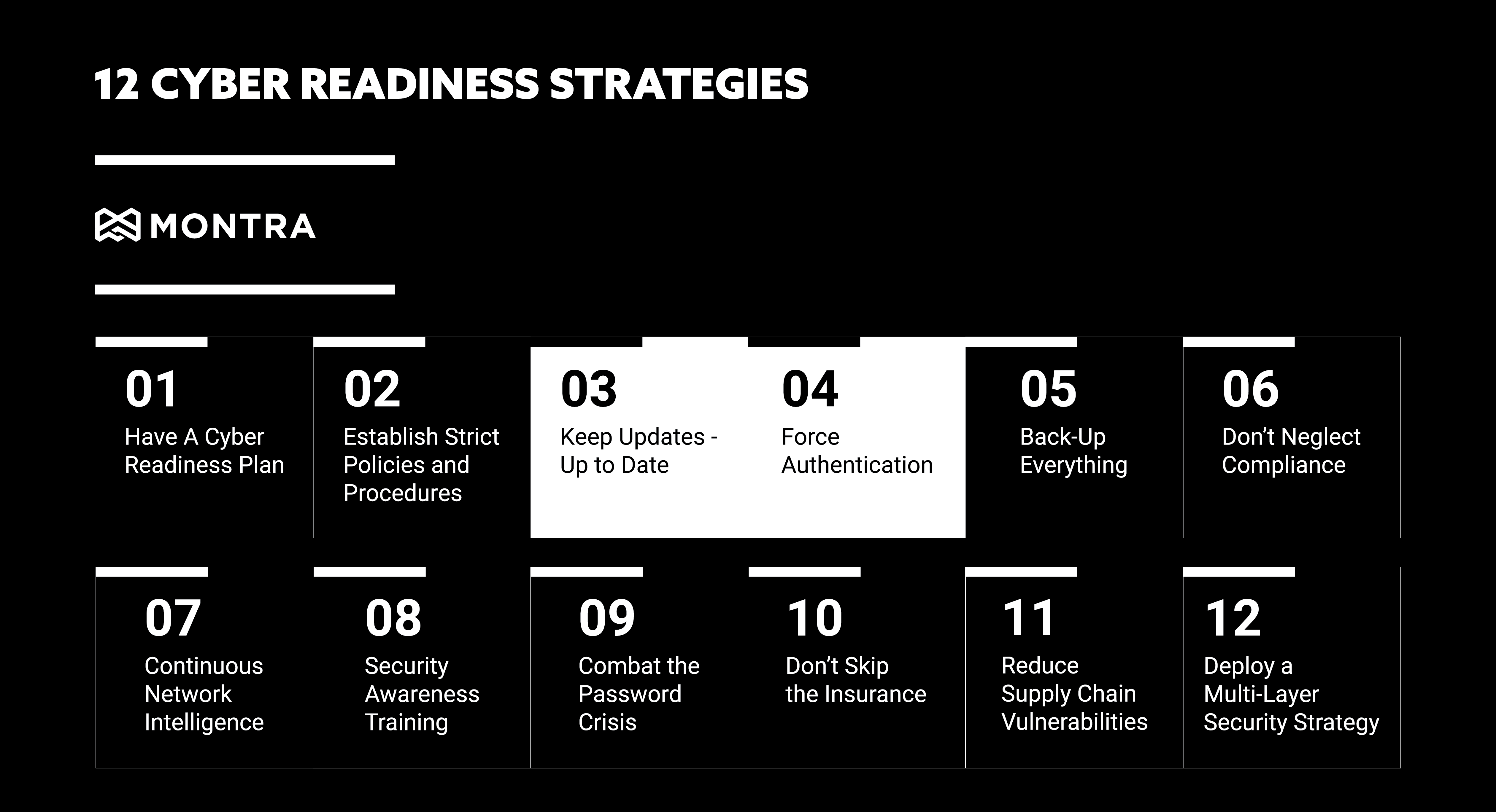
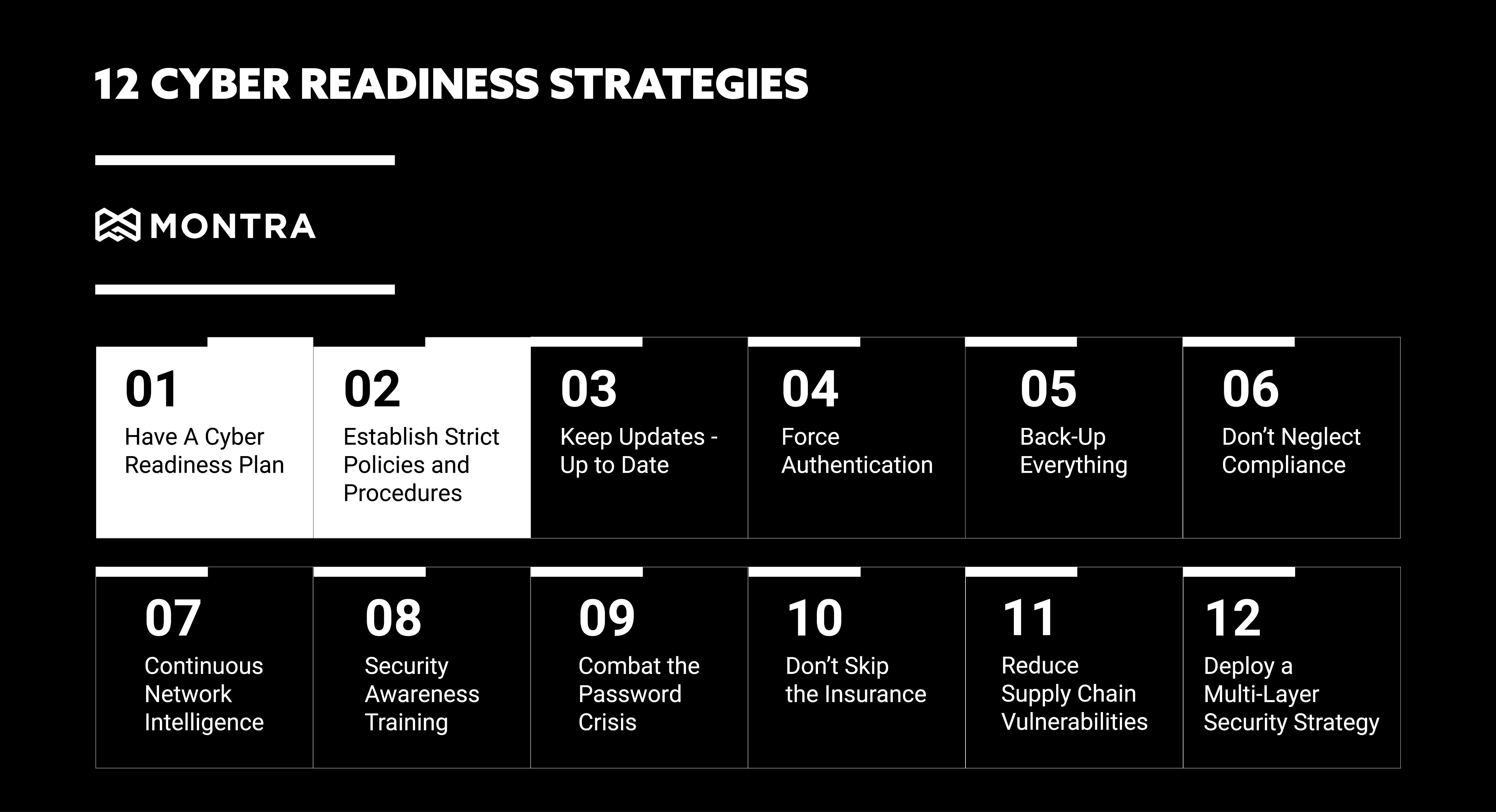
Is your business ready to handle a targeted cyber-attack? Maybe you have been attacked and don’t even know it. According to the the 2020 Thales Data Threat Report, 49% of US companies have already experienced a data breach. To help you become more proactive and effective at defending against cyber threats, we are discussing 12 Cyber Readiness Strategies over the next few blogs.

1. Have a Cyber Readiness Plan

It may seem obvious, but to properly address all of the cyber-security threats to your organization, you first need to have a plan – specifically a Cyber Readiness Plan. Your ability to quickly and cost-effectively overcome security threats or breaches determines your business’s success and survival. How you handle and protect your data is central to your business’s security and customers, employees, and partners’ privacy expectations. You need a cyber readiness plan that includes prevention, continuity, and recovery strategies. The Federal Communications Commission provides an excellent planning guide that identifies six critical areas of cybersecurity for companies to address:

1. Privacy and Data Security

2. Scams and Fraud

3. Network Security

4. Email

5. Website Security

6. Mobile Devices

Download the associated cheat sheet as an easy outline to understand each of these areas to help you quickly navigate these best practices and assess your readiness.

2. Establish Strict Policies and Procedures

Cybersecurity policies and procedures help guide secure business operations and are essential for defining the standards of business conduct, system controls, employee awareness, and workplace definitions and expectations. While establishing strict, security-focused protocols is crucial, a system of validation and enforcement is equally important. In fact, all major cybersecurity and privacy frameworks, such as NIST CSF, ISO 27001, HIPAA, and PCI DSS, all require periodic auditing or continuous monitoring to make certain that policies are properly put into operation.

To help you start building your cybersecurity policy and procedure library, we have provided a few policy templates to start. Click to download 12 IT policy templates that are critical to any IT operation.

Microsoft 365 Trends in 2022

After a somewhat late start and mixed approach to offering services versus software (remember ASPs and Hosted Exchange), Microsoft 365 has become the dominant SaaS platform for mid-market and SMB companies. Microsoft 365 now has over 50 million subscribers. Not all of the other major SaaS providers provide their subscriber numbers but they include Adobe Cloud with 26 million subscribers and Salesforce with an estimated 17.8 million subscribers. 

With such a dominant role in corporate IT, our final trend predications for 2022 is focused specifically on the trends for Microsoft 365. 

1. More AI Features will Be Added 

 Artificial Intelligence (AI) is already a central focus of some 365 applications like Dynamics AI, but where most users feel the impact of AI is when these smart features are embedded into the core 365 apps. Like dynamic translations between languages in Word or the resume helper feature that pops up when Word believes you are working on one. 

Microsoft’s enormous user base puts them in a unique position to use AI techniques like machine learning (ML) that need a lot of user behavior data to work well. Microsoft will roll out these types of smart features in 2022 to offer uniqueness to their offerings that can only be added at their scale. 

2. Microsoft 365 will Get More Complex – not Less 

The approach that Microsoft has taken with 365 has been to constantly add to features and capabilities often without much of an announcement, documentation, or support. Many of these features are included in one or more of their subscription levels. The approach makes sense at the scale at which they operate, but it leads to adding more capabilities that make the 365 more complex to understand and utilize well. 

In 2022 this trend towards more complexity will continue. New features and new pricing plans will be an expanding story throughout the year. In Microsoft’s defense, it is really the right strategy for them right now. It is relatively low cost for them to add features to 365 and effectively test them on their large customer base. The features that are working and being used (like Teams) get more development and support effort, while the features that don’t work get less support and will even get removed (like Delve). 

3. More API Tendrils will Deepen Microsoft 365’s Grip 

The number of application programming interfaces (APIs) in Microsoft 365 is mind-boggling. In 2022, the breadth of API coverage will increase. This is a strategic play and a practical benefit associated with the size and scale of Microsoft 365. Providing broad API support gives an incentive to enterprise developers or third parties to use the 365 features and applications in the automation of their business workflows. 

Look for more API support in the core IT processes that are associated with email, security, remote working, and data loss prevention. 365 is at the center of where most company’s employees interact with technology and communicate with one another. API support for automation that leverages this unique position for 365, is highly strategic to companies and therefore to Microsoft also. 

4. Remote Collaboration Will Take Center Stage 

Regardless of what happens with the pandemic and changing attitudes about remote work, Microsoft 365 will see many new features added or expanded to enable better remote work. While there are clear indications that many employees will return or continue to work from an office location, the remote work wave among software and services will lag the trend since rolling out these features has taken so long. 

For 365, extensions to Teams and the collaboration features of the Office application suite will feature prominently in 2022, if for no other reason than they were in development in 2020 and 2021. These features will provide value to remote workers and remote teams but will not see as much impact as was originally expected in 2021. 

We are big believers in Microsoft 365 and the increasing influence it will have on users across companies of all sizes. What do you think about Microsoft 365 in 2022? Where do you think Microsoft will expand this juggernaut for the upcoming year? Let us know what you think at info@montra.io.